Showing posts with label google. Show all posts

Saturday, February 27, 2010

Boost traffic using AdWords to find effective keywords and phrases

One way you can increase traffic performance is by using keywords and/or phrases suggested by Google themselves, through Google AdWords.

google_alexa_rank With an alexa traffic rank of number 1, Google AdWords gives you the opportunity to work with the widest range of audience that’s already interested in you or what your website has to offer, and can offer higher click-through-rates for your website or business. Upon completion of each campaign, Google AdWords will provide new keywords and phrases that they feel is the most effective and will help increase traffic performance for your website and bring you the highest CTRs, allowing you to eliminate guesswork. Let’s take a look at how we’re able to derive keywords and phrases from this.

Steps to follow

1. You can sign up for Google AdWords here.

2. Once you’ve signed up, create a new campaign, under the “Campaigns” tab, and select the “+ New campaign” button.

adwords_campaigns

3. Next, set up your campaign settings and create your ad. Allow it to run for a day so Google can review your site and campaign to provide better feedback and new opportunities on the keywords and phrases.

adwords_opportunities

4. To check if opportunities are offered, click on the “Opportunities” tab. If opportunities are present, you can go through a range of keywords and phrases Google has found being the most effective for your site and will drive the most traffic through organic searches.

adwords_new_keywords

Note: Take time to do research on the geographic area most interested in your site’s niche or service. Targeting areas where there is a high interest can greatly increase CTRs.

Sunday, December 20, 2009

Drive click-through-rates by targeting ads for higher revenue and relevant ads

Business Graph One way you can optimize your ads for performance inclination is by targeting ads with specific keywords relating to your blog’s niche through custom channels. Because your visitors are interested in your blog’s niche, by targeting your ads, you can display relevant ads for your readers on topics they are actually interested in. With targeted ads, you’re able to display ads on your page without it interfering with readers interest and at the same time push on click through rates and maximize revenue.


To create a custom channel for your ad:

1. Log into your Google AdSense > AdSense Setup > Channels


adsense_channels


2. Select “+ Add new custom channels” under the “AdSense for Content” tab


add_new_custom_channel


3. Name your channel and select “Show this channel to advertisers as an ad placement”, and fill out the rest of your websites information and under Description, fill in keywords that targets your blog.


channel_description


4. Add the Channel and navigate over to AdSense Setup > Manage Ads > and select “Edit AdSense unit” on the ad you want to target.

5. Scroll down to “All Channels” and add the channel you just created and remove any selected channels you may have.

6. Save your settings and allow up to 10 minutes for your relevant ads to start running.


channels_save_settings

Friday, December 11, 2009

Picking out the right keywords that will optimize search engines ranking

trafficoverview There are two major parts when setting up your blog. The first part is your part, and that deals with setting it up and making sure the template runs smoothly and quickly for your users and readers. It’s important to keep this in mind when implementing your layout, you want to make sure your visitors have a good experience when they visit your blog, ie. loading time, functionality, appearance, etc. The second part, is your blog’s part, and this part deals with optimization. You want to make sure your blog can work for you while you’re there, away, or perhaps in Chicago at an SEO event.

To do this, you’ll definitely need to have the right tools and information about your blog, the visitors that come to your blog, and how they are getting there. In most cases, for blogs just starting up, your visitors will be coming from referring sites or direct traffic. What about search engines? You want to make sure your blog shows up on search results on topics that are relevant to your blog’s niche, and you want to make sure it’s able to compete with other blogs that are in the same game.

To gather the right information from your Blogger blog/blogs, you want to go with it’s provider, Google. Google provides tools for webmasters trying to optimize visibility of their websites.

With the Google Webmaster Tools, webmasters are able to -

  • Check and set the crawl rate
  • List internal and external pages that link to your blog/site
  • See what keyword searches on Google led to the site being listed in the SERPs, and the click through rates of such listings
  • View statistics about how Google indexes your blog/site
  • Submit and check a sitemap
  • Generate and check a robots.txt file

You can set your site/blog up with Google’s Webmaster Tools here.

A few tips and information to help you out in the process:

Set site defaults
You can set your site’s settings with Google to show your page with or without the www. or target a specific geographic area

sitesettings 
Check errors on your blog/site
See if any errors are occurring on your blogs/sites for your visitors, ie. broken links, links that are driving traffic to the site for which there is no valid page, and pages it knows about but has been restricted from crawling.

errors
Analyze meta descriptions and title tags
See a list of URLs that have duplicate title tags or meta descriptions and pages with too short, or too long of meta descriptions or titles.

metas 
Keywords
See the most common keywords Google found when crawling your site/blog and it’s significance. These keywords should be used more often in your content to help it’s search engine optimization.

keywords
Site performance

See how your site/blog is performing so you can make changes to improve speed of your site and create a faster experience for your users.

performance


Top search queries

See information about user search queries that have returned from your site/blog. Which searches allowed your site to appear on search engines and which ones were clicked to get to your site/blog.

searchqueries

and many other useful information for you to analyze …

Thursday, December 3, 2009

Blogspot Vision invites you to Google Wave

google_wave_logo Subscribe by email to receive a Google Wave invite. Current email subscribers will receive an invite as well. What’s Google Wave? Google Wave is an online tool for real-time communication and collaboration. A wave can be both a conversation and a document where people can discuss and work together using richly formatted text, photos, videos, maps, and more. Google Wave is currently open to invites only.

Ok? But what exactly is a wave?ss2
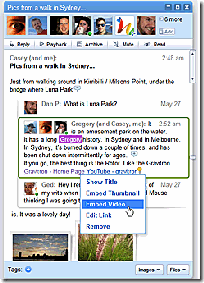
A wave is equal parts conversations and document
People can communicate and work together with richly formatted text, photos, videos, maps, and more.

A wave is shared
Any participant can reply anywhere in the message, edit the content and add participants at any point in the process. Then playback allows anyone to rewind the wave to see who said what and when.

A wave is live
With live transmission as you type, participants on a wave have faster conversations, see edits and interact with extensions in real-time.

When and where is the use of Google Wave used? What can it bring to the table that current technology can’t?
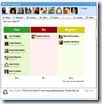
Organizing events
Keep a single copy of ideas, suggested itinerary, menu and RSVPs, rather than using many different tools. Use gadgets to add weather, maps, and more to the event.


Group projects

Collaboratively work in real-time to draft content, discuss and solicit feedback all in one place, rather than sending email attachments and creating multiple copies that get out of sync.

photosharing Photo sharing
Drag and drop photos directly from your desktop into a wave. Share with others. Use the slideshow viewer. Everyone on the wave can add their photos, too. It is easy to make a group photo album in Google Wave.

Meeting notes
Prepare a meeting agenda together, share the burden of taking notes and record decisions so you all leave on the same page. Team members can follow the minutes in real-time, or review the history using Playback.
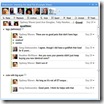
Brainstorming
Bring lots of people into a wave to brainstorm – live concurrent editing makes the quantity of ideas grow quickly! It is easy to add rich content like videos, images, URLs, or even links to other waves. Discuss then work together to distill down the good ideas.

All work, no play = no fun. Of course, Google hooked up with Sudoku, so  you can play interactive games while or after work
Add a gadget to a wave to play live interactive games with your friends. See everyone’s moves as they make them in a fast paced game or take a break and come back later.


Google Wave’s extensions


labpixies
Labpixies – solve challenging Sudoku puzzles together and see who’s the best player.

ribbit
Ribbit – ready. set. talk! Ribbit brings telephone conference calls to Google Wave.

6rounds
6 rounds – enjoy a collaborative, real-time video chat experience. Share videos, play games, browse together, and have fun with this playful gadget.

lonelyplanet
lonely planet – co-create an itinerary: choose points of interest –including lonely planet recommendations, organize, share, print, or export to My Maps.

accuweather2
AccuWeather
– the AccuWeather Wave Gadget is the perfect companion for trip planning. Select a location and date, and the gadget will return a forecast.

maps
Google maps – collaborate on a map of placemarks, paths, and shapes with other participants. Great for planning events and trips.

Click here to visit Google Wave
* See what Google Wave can do for you and/or your business, academics, and network connections today.